How to connect Flux to App Store Connect
Set up an App Store Connect API key, Key ID, and Issuer ID for Flux. Learn why Admin access is needed and how credentials stay in Apple Keychain.
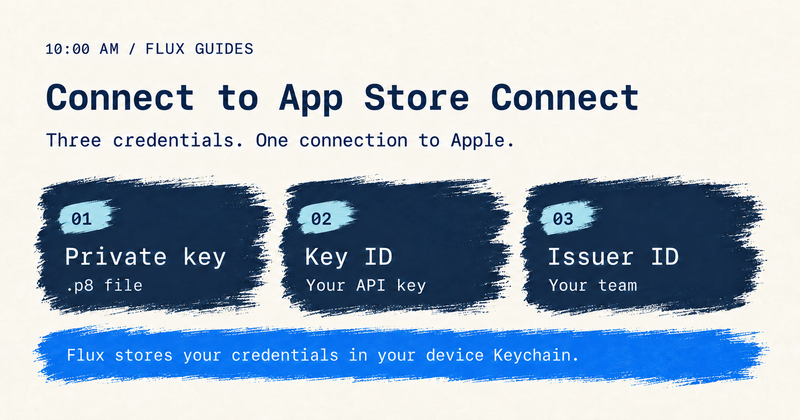
Connecting Flux to App Store Connect starts with three things: a private API key, a Key ID, and an Issuer ID. Together, they let Flux authenticate with Apple so you can work with your apps, analytics, reviews, and releases.
We’ll create a team API key in App Store Connect, choose Admin access, and bring the three credentials into Flux. Along the way, we’ll explain why that permission matters and where Flux stores your key.
You need a private key, Key ID, and Issuer ID
These names look similar, but each one has a different job. Here’s what you’ll collect before opening Flux.
| Credential | What it does | Where to find it |
|---|---|---|
| Private API key | Signs the tokens used to authenticate requests to Apple. | The downloaded .p8 file. |
| Key ID | Identifies the particular API key you created. | The key’s entry in the Team Keys list. |
| Issuer ID | Identifies the issuer of your team’s authentication tokens. | The Issuer ID shown on the Team Keys page. |
The Key ID must match the private key you download. The Issuer ID comes from the same team. It isn’t your Apple Developer Team ID, an app’s bundle ID, or your Apple Account email. Apple explains how these values work together in its API authentication guide.
Open Users and Access, then Integrations
Sign in to App Store Connect and choose the team whose apps you want to manage. Open Users and Access; if it’s hidden in the top navigation, use the three-dot menu.

Choose Integrations, then App Store Connect API and Team Keys.

If you see Request Access, the Account Holder needs to submit that request first. Apple reviews it before enabling API access. An Account Holder or Admin can then create a team key. See Apple’s API setup instructions.
Create a team API key with Admin access
- In Team Keys, click Generate API Key, or the + button if you already have an active key.
- Give it a recognizable name, such as Flux.
- Under Access, choose Admin.
- Click Generate.
Use a dedicated key for Flux so you can identify and revoke it separately. This guide uses a team key because that’s the credential flow with an Issuer ID.
Admin access lets Flux request analytics reports
Flux needs Admin access to request the analytics reports it uses to bring your App Store performance into view. Apple reserves creating and deleting analytics report requests for the Admin role. Sales and Reports or Finance access can read reports that have already been generated, but can’t create those requests. That distinction is why a key that can download existing reports still falls short of the access Flux needs. You can check the permissions in Apple’s analytics API documentation.
Admin is a broad permission, and team keys apply across all apps in the account. Apple doesn’t let you restrict a team key to one app. Choose it with that scope in mind; the key’s role controls what authenticated requests are allowed to do.
You’re choosing the API key’s access level here. You don’t need to invite a 10:00 am employee to your team or share your Apple Account password.
Download the .p8 key and copy both IDs
Stay on the Team Keys page after generating your Flux key. Collect the three credentials here:
- Download the private key: Find the key you just created in the active keys list and click Download API Key. Confirm the download in the dialog. Your browser saves a file with a name like
AuthKey_XXXXXXXXXX.p8; check your Downloads folder or the browser’s download list to find it. - Copy the Key ID: Find the Key ID in that same key’s entry and copy it. Make sure you’re using the entry named Flux, rather than another active key.
- Copy the Issuer ID: Look above the keys list for Issuer ID and use the Copy control next to it. This value belongs to the team, so it appears separately from the individual key entries.
You now have the .p8 file, its matching Key ID, and your team’s Issuer ID ready for Flux. For more detail on downloading and securing the key, see Apple’s key creation guide.
Add the matching key and IDs to Flux
Open Flux’s App Store Connect connection setup. Enter the Issuer ID and Key ID, then provide the corresponding private key in the format the setup asks for.
If the setup offers a file picker, select your downloaded .p8 file. If it asks for private key text, open the file in a plain-text editor and copy its complete contents, including -----BEGIN PRIVATE KEY----- and -----END PRIVATE KEY-----. The filename alone is not the private key.
Finish the connection in Flux. Keep all three values together: mixing a Key ID from one entry with a private key from another won’t authenticate.
Flux stores your credentials only in Apple Keychain
Flux stores your App Store Connect API credentials in Apple Keychain on your device, using device-only protection. Flux does not send them to or store them on servers operated by 10:00 am. The key is used on your device to authenticate requests to Apple.
Imported App Store data stays locally on your device. Selected organization settings can sync through your private iCloud account; that is separate from the device-only storage of your API credentials. These details are covered in the Flux privacy policy.
There’s one practical detail to remember: the .p8 file you downloaded from Apple is still a separate copy wherever your browser saved it. Flux’s Keychain storage doesn’t remove that file. After connecting, decide whether to keep it in secure storage or remove the downloaded copy. If you need it again and no longer have it, create a replacement key.
Check the IDs and Admin role if the connection fails
- Authentication fails: Check that the Key ID belongs to your
.p8key, the Issuer ID comes from the same team, and the key is still active. Remove accidental spaces from the IDs. - Private key text is rejected: Check that you copied the complete file contents, including both boundary lines.
- Analytics requests are denied: Check that the key’s Access role is Admin. Being an Admin yourself doesn’t make every key you create an Admin key.
- You can’t create a team key: Ask your Account Holder or Admin to help, and check whether the Account Holder still needs to request API access.
Revoke the dedicated key to stop future access
In App Store Connect, return to Users and Access → Integrations → App Store Connect API → Team Keys. Use Edit, select the Flux key, and choose Revoke Key. Revocation stops that key from authorizing future requests; it doesn’t erase data already imported to your device.
Apple doesn’t let you change an existing key’s access level or restore a revoked key. To replace it, generate a new key and update Flux with the new private key and Key ID, together with the team’s Issuer ID.