How to prepare and publish an App Store release with Flux
A step-by-step Flux guide: create an App Store version, update and translate your listing, add screenshots, select a build, set cryptography, and submit for review.
The build is tested. The changes are ready. Now we need to turn that work into an App Store release: choose a version number, update the listing, check each language, attach the right build, and send it to Apple.
Flux brings that publishing work into the same workspace as your App Store analytics and reviews. This guide walks through preparing a new version in Flux, then checking its submission and release in App Store Connect. We’re using Rise on macOS in the screenshots; choose your own app, platform, and version as you follow along.
Before you start
- Connect Flux to your team. If you haven’t done that yet, follow our guide to connecting Flux to App Store Connect.
- Have an app record ready. This walkthrough starts with an existing app. For a first launch, our App Store publishing guide covers account and app setup.
- Upload your release candidate. Build and upload the app through Xcode, Transporter, or your existing supported workflow. Wait for Apple to finish processing it. Flux is where we prepare the release details and choose that uploaded build. See Apple’s build upload guide.
- Gather the release materials. Have your release notes, updated listing text, screenshots, and any reviewer instructions ready.
1. Create a new version in Flux
Open your app in Flux and switch to Distribution. Find Versions and click the + button.
- Select the platform you’re releasing for, such as iOS or macOS.
- Choose the version type: Major, Minor, or Patch.
- Check the Version number before continuing. In our example, we’re preparing macOS version 3.5.
- Click Continue to open the version details.
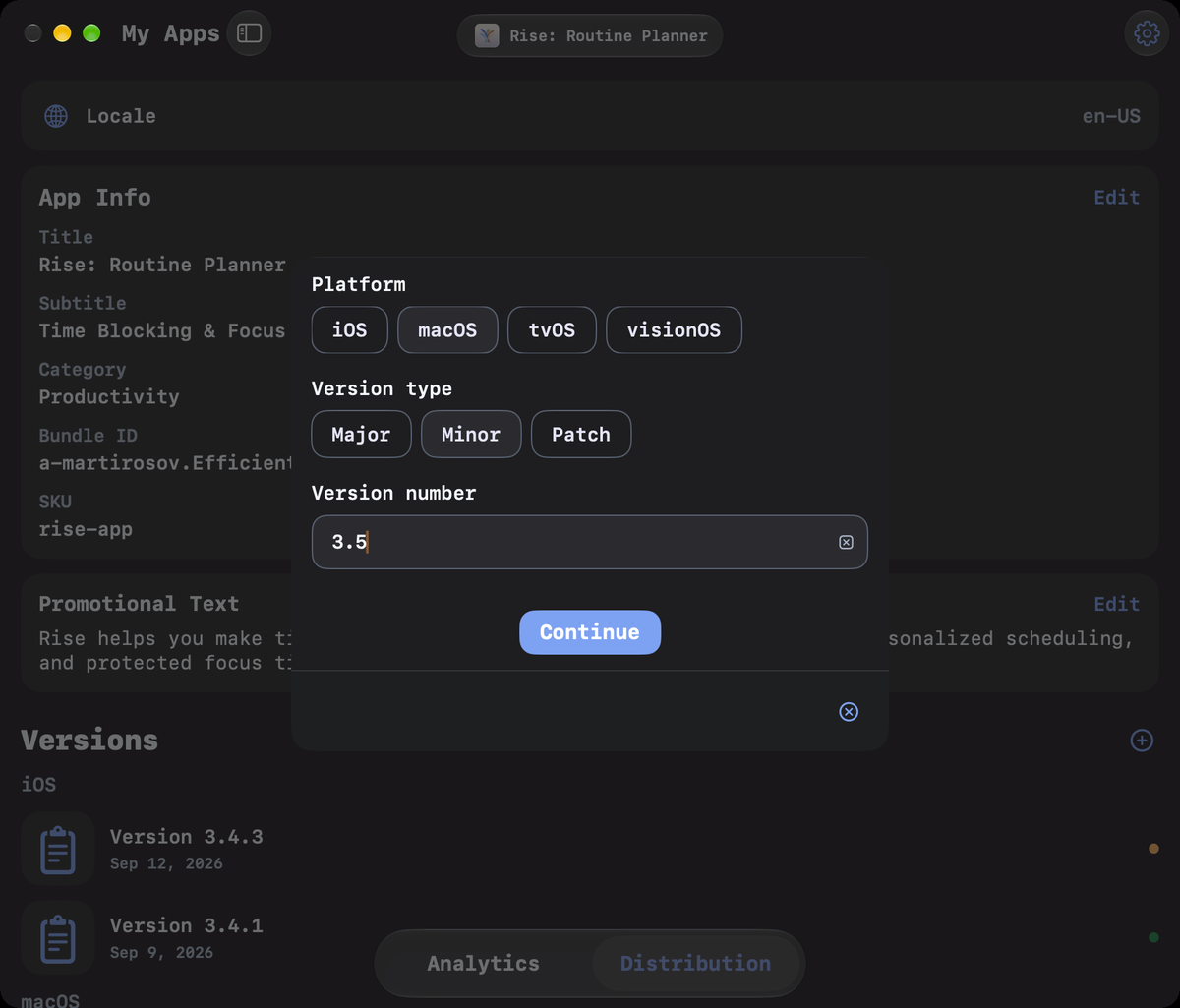
The store version and build number do different jobs. The version is the release people see, such as 3.5; the build number identifies a particular upload for that release. Check that the uploaded app’s version matches the version you’re preparing. Apple uses the bundle ID and version number to associate uploads with the right app and version.
2. Write the listing and release notes
Start with the app’s default locale, also called its primary language. Fill in the text for this locale yourself; Flux uses it as the source for translating the other localizations.
- App Name and Subtitle: Check that they still describe the app accurately. You don’t need to change them for every update.
- What’s New: Explain what someone will notice after updating. Name the useful changes and fixes in everyday language.
- Description: Bring it up to date if the release changes what the app does or how people use it.
- Keywords: Review the terms for this version and language. Remove terms that no longer fit.
For example, a release note might read: “You can now move a routine to another day without rebuilding your plan. We also fixed a crash when opening an empty week.” That gives people something concrete to understand.
If Flux offers Use from iOS 3.4.3, or a similar link to another version, you can reuse existing text as a starting point. Read it again before keeping it: a change available on iPhone may not belong in the Mac release notes.
Watch the character counters as you edit. Click Save to keep your changes. You can return to the version later to finish preparing it before submitting it for review.
3. Review and translate each localization
Open the created version and use the language tabs at the top to move between localizations. In our example, those tabs are en-US and de-DE. The + beside them lets you add a localization.
- Finish the text in the app’s default locale yourself first, especially the release notes.
- Switch to another language you want to prepare.
- Use the translation control beside a supported field to translate it from the default locale. You can use Apple Private Compute models or bring your own API key for OpenAI or Claude.
- Read the result, check the character counters, and save your edits.
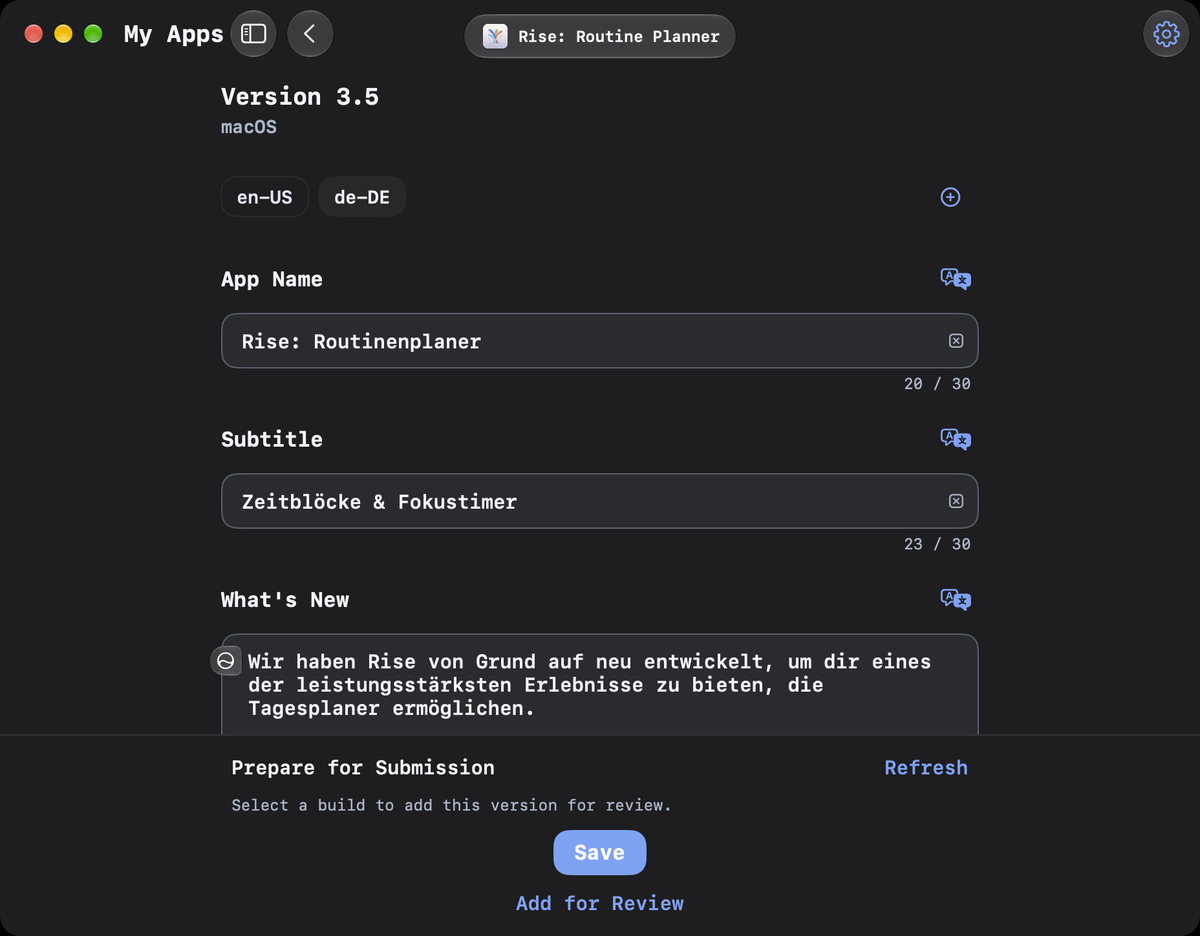
Flux supports AI translation of the title, subtitle, description, release notes, and keywords. Treat the result as a draft to review. Keep product names consistent, check that the meaning survived, and make sure every promise still describes the build you’ll submit.
4. Update the App Store screenshots
Open screenshot editing for the version and localization you’re preparing. Check the platform, version number, and language shown at the top before making changes.
- Review the existing screenshots against the new build.
- Remove images that show an outdated screen or a feature that has changed.
- Use + to add the updated screenshots for the relevant device group.
- Check the full set and repeat for the other localizations that need new images.
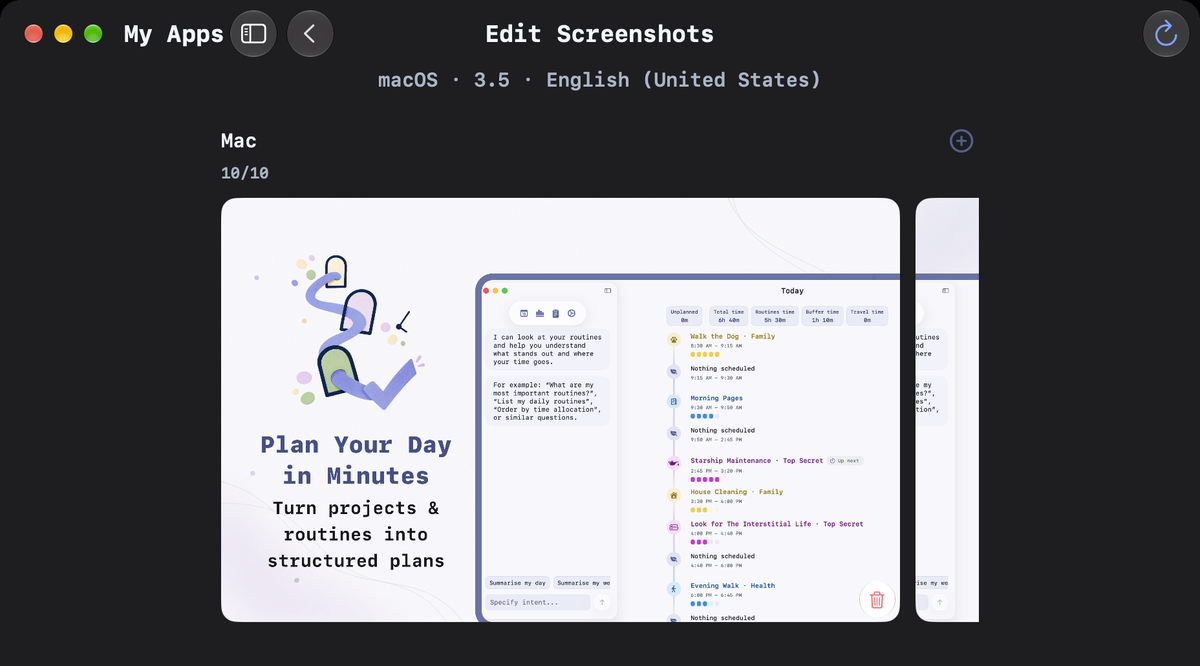
Show the experience someone can actually get from this release. If you’ve changed the navigation, added a major feature, or translated the interface, check whether the screenshots need to change with it.
5. Select the build you want Apple to review
Return to the version and select its build in Flux. Choose the release candidate you tested, then check its version and build number before saving the selection.
This matters when you’ve uploaded several candidates for the same version. Two uploads may both say 3.5, while only one contains the final fix. The build number is how you tell them apart.
If the expected build isn’t available, confirm that the upload finished processing and belongs to the correct app, platform, and version. Refresh the version in Flux after Apple finishes processing. Apple allows one build to be attached to a version at a time; see its build selection guide.
6. Set the build’s cryptography type
For the selected build, complete the cryptography setting in Flux. Choose the type that matches the encryption used by that build, including its third-party libraries, and save the answer before moving on.
This is a declaration about the app you uploaded. Choosing a type doesn’t add encryption to the app or change its code.
Check what your app uses before answering: Apple’s operating-system cryptography, standard encryption implemented by the app or a library, or proprietary encryption can lead to different answers. Follow Apple’s export-compliance questions to determine whether documentation is needed. An exemption from documentation doesn’t necessarily mean the app uses no encryption.
If Apple requires encryption documentation, complete that process in App Store Connect and attach the approved documentation to the build. Resolve any Missing Compliance status before submission. Apple’s build compliance guide explains that flow.
7. Check the release details
Save your changes in Flux, then make one final pass through the version. The Prepare for Submission area helps you see what still needs attention; use Refresh to reload its state.
- The app, platform, version, and selected build are correct.
- The listing, release notes, and screenshots are ready in each language you’re updating.
- The build’s cryptography answer is saved and any required documentation is resolved.
- The reviewer has working sign-in details and instructions for anything that needs explaining.
- App privacy, age rating, pricing, and availability in App Store Connect still match this release.
8. Add the version for review and confirm submission
When the version is ready, click Add for Review in Flux. Read any validation message and resolve missing information before continuing.
Then verify the submission in App Store Connect → your app → App Review. If the version is in a draft submission, open that draft, check its contents, and click Submit for Review. Apple’s workflow separates adding an item to a submission from sending that submission to the review team. Its submission guide shows both stages.
Check the resulting status. Ready for Review still needs submission; Waiting for Review means it has been sent, and In Review means Apple has started reviewing it. If it’s already waiting or in review, you’ve completed the submission step.
9. Release the approved version
Follow the review status and respond to any questions from Apple in App Store Connect. If the reviewer reports a problem, address that issue and check whether you need revised metadata or a replacement build.
After approval, the release setting determines the next step:
- Manual release: When the version is Pending Developer Release, open it in App Store Connect, choose Release This Version when you’re ready, and click Confirm.
- Automatic release: Apple proceeds with release after approval.
- Automatic release with a date: The version is released after approval, no earlier than the date you selected.
Check the public App Store page once the release is available: confirm the version, release notes, and screenshots. Apple notes that an approved release can take up to 24 hours to go live; see its publishing overview.
Once people can download the update, return to Flux to follow downloads, revenue, and reviews. That’s the next useful question after shipping: what changed for the people using the app, and what should we work on next?